


As a consultant who works on modern & future work, AI and Microsoft 365, my mouse is one of the tools I use the most every single day. I have been a long-time fan of the MX Master line — the MX Master 3s has been my daily driver for years — so when Logitech offered me the chance to try the new MX Master 4 for Business, I was very curious to see what a new generation would actually bring to the desk. Thank you, Logitech, for sending it over for testing.
I have now used the MX Master 4 for about a month, both at my home office and on the road, and I want to share my hands-on experience with it. MX Master 4 is the first mouse to support advanced haptics on Windows!
First impressions: familiar, but a little biggerThe new headline feature: haptic feedbackTuning the haptics to your tasteLogi Options+ is still the way to configureEasy-Switch between three computersBattery — and Logitech’s estimates that are actually accurateDimensions and small things that add upWho is it for?
First impressions: familiar, but a little bigger
If you have used an MX Master 3 (or 3S), the MX Master 4 will feel immediately familiar. The shape, the sculpted thumb rest, the MagSpeed scroll wheel, the side thumb wheel — they are all there, where you expect them to be.
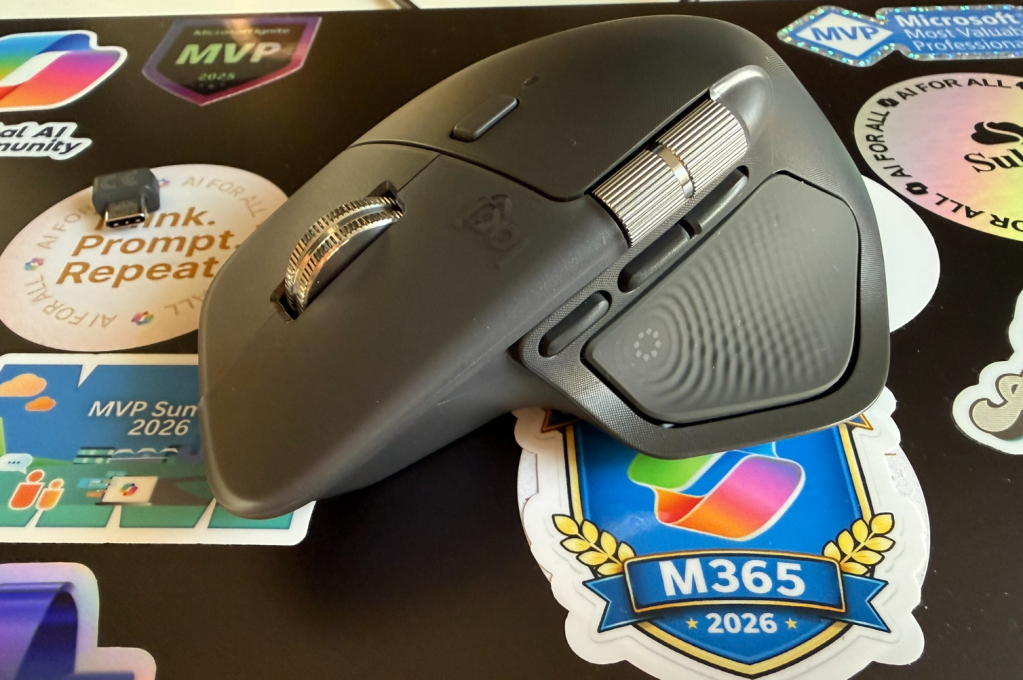
What surprised me at first was the size. The MX Master 4 is slightly larger than the MX Master 3s, and I noticed it immediately. My hand needed a little time to adjust to the new proportions. After about a week it felt completely natural, and now I actually prefer it. If you ever felt that the MX Master 3 was just a touch too small for your hand, this version is going to fit you better.
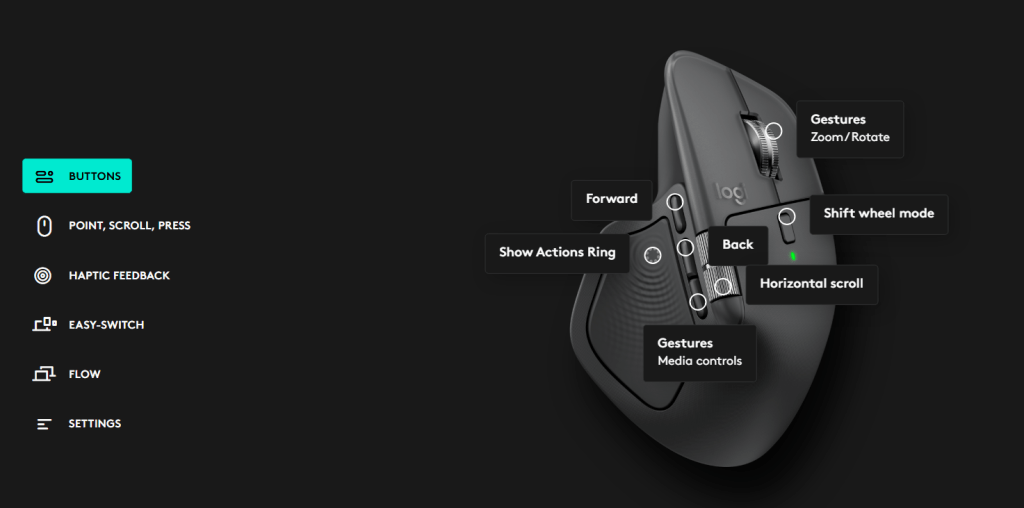
One small consequence of the new shape: the furthest button under the side thumb wheel is, for me, a bit out of comfortable reach with the thumb. I solved this by assigning a rarely-used function to it in Logi Options+, so I do not need to stretch to it during normal work.
Logitech site also mentions that MX Master 4 should have improved stain resistance, and it would be easier to clean than 3s. I am looking forward to seeing this in couple of years for sure!
The new headline feature: haptic feedback
The big new thing on the MX Master 4 is the haptic feedback — Logitech calls it the Haptic Sense Panel, and it sits right under the thumb area where your thumb naturally rests. This is the feature I have been most excited to test, and honestly it has been the most fun part of the review.
Haptics here are not just a gimmick. The mouse gives you a small, tuned vibration when something meaningful happens. The first time I really got it was in PowerPoint: as I dragged a shape near another one and they snapped into alignment, I felt a clear little tick from the mouse. It is a small thing, but it changes the experience. You feel the alignment as well as see it. Suddenly the layout work becomes a more tactile activity, almost like working with physical objects on a desk.
You will also feel haptics on things like window snapping and resizing in Windows 11 — Logitech has built native integration with Windows 11 Advanced Haptics, and more scenarios (like file drag and drop) are coming. On the Logi Options+ side, the Actions Ring, Smart Actions and Gestures all benefit from the feedback — when the Actions Ring opens around the thumb area, the haptic feedback comes from exactly the same area, which makes navigation feel very natural.
Windows 11 Haptics support: MX Master 4 Native Haptics with Windows 11 – Logitech Support
Take a look on Haptics on Logitech’s page: Logitech MX Master 4 — discover Haptics.
Tuning the haptics to your taste
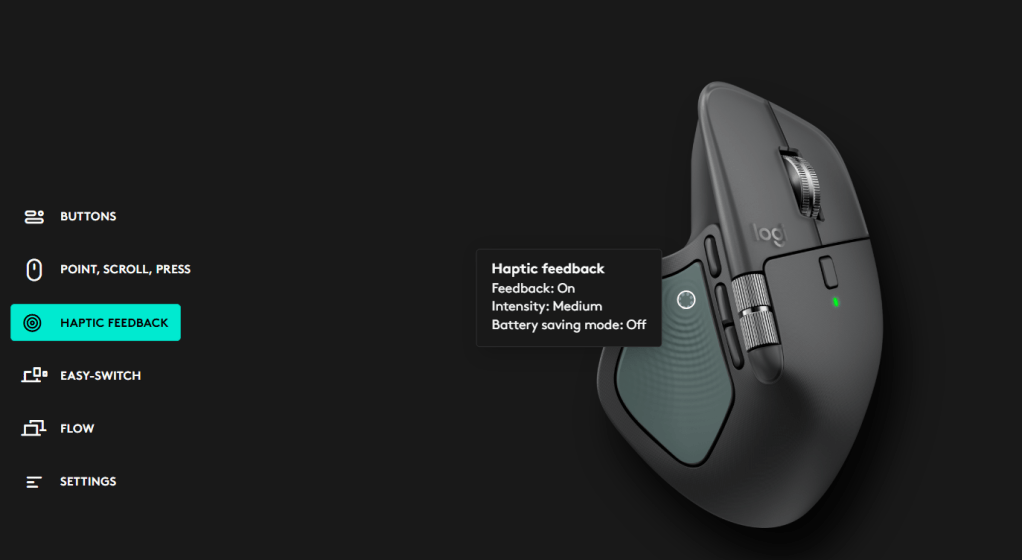
In Logi Options+ you can configure the haptic feedback in a way that fits you. There are four intensity levels:
Subtle
Low
Medium (default)
High
I have stayed on Medium, which is exactly where I wanted it after a few days. You can also enable or disable haptics per plugin/per app, so if you do not want feedback in a particular tool you can switch it off there and keep it elsewhere.
I really like the haptics. The feedback genuinely adds to the experience and, after a month, it is the feature I would miss the most if I had to go back.
Logi Options+ is still the way to configure
To get the most out of this mouse, install Logi Options+. This is where you tune the haptic intensity, configure per-app profiles, set up the Actions Ring, Smart Actions, Flows, and gestures, and assign each button. The MX Master 4 has a lot of buttons, and Options+ is the place where they all become your buttons.
One change I made compared to my MX Master 3 setup: I moved my media controls away from the thumb button and assigned them to one of the three buttons under the side thumb wheel. This is partly because the thumb area is now the haptic zone where the Actions Ring opens, and partly because, after a few days of using it, the buttons under the thumb wheel turned out to be a more comfortable place for media keys for me. It is a small workflow change, but it is the kind of thing Options+ makes very easy.
Easy-Switch between three computers
Like the MX Master 3, the MX Master 4 supports Easy-Switch between up to three computers. I bounce between a work laptop, a personal device and a demo machine constantly, so this is the single feature that earns its place on my desk every single day.
You can switch in two ways:
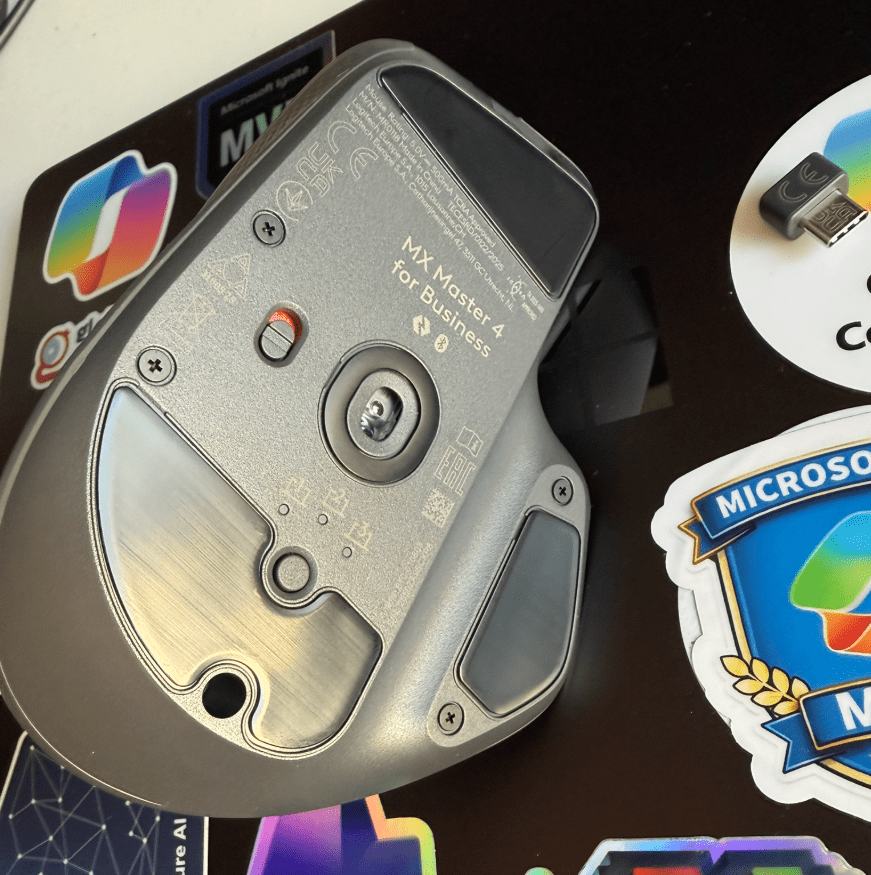
The dedicated button on the bottom of the mouse, the classic way. This is how I switch.
From the Actions Ring, right under your thumb — which, with haptics, feels great.
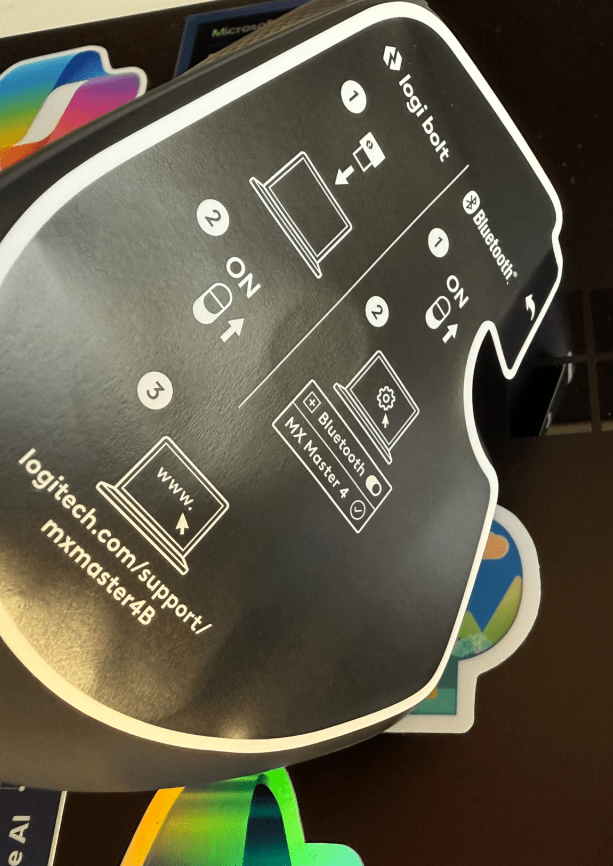
Connect via Logi Bolt USB receiver or Bluetooth, on Windows, macOS, Chrome OS or Linux.
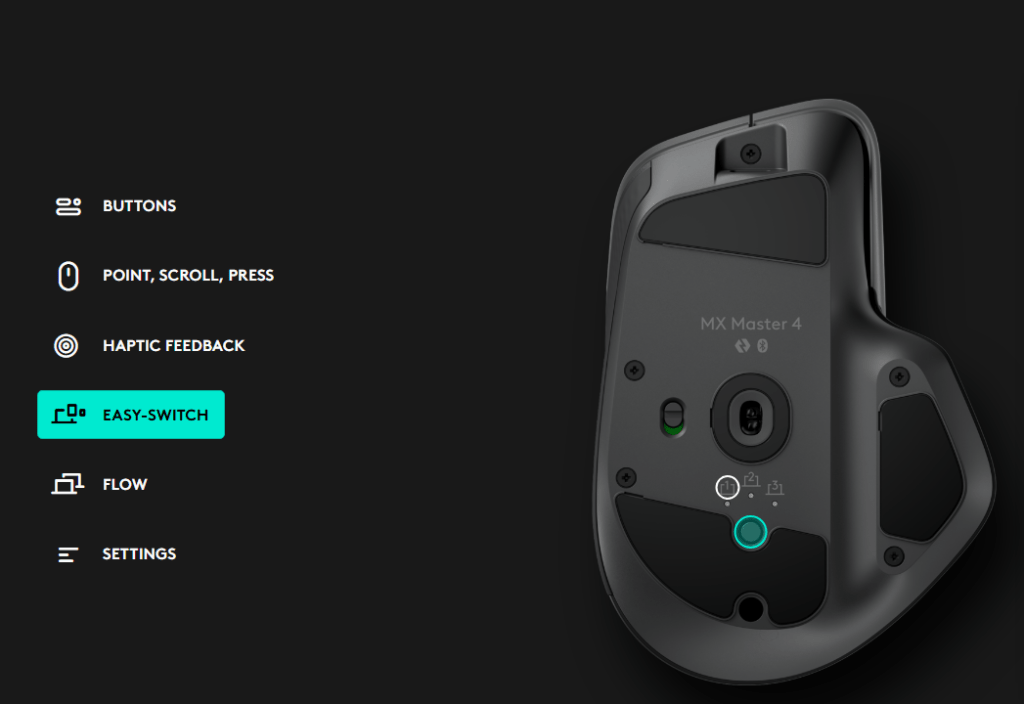
What I truly like is how easy it is to connect the mouse to Windows 11 computer these days. Just easy-switch to unassigned slot and it is automatically pairing, which Windows then notifies and asks if you want to connect to the device. It could not be easier.
Battery — and Logitech’s estimates that are actually accurate
Logitech states a battery life of about 70 days on a full charge. I usually take such numbers with a pinch of salt, but my experience with the MX Master line — and with the MX Brio and other Logitech gear — is that their battery estimates are remarkably honest.
After about a month of heavy daily use, including a lot of meetings, presentations and the haptic feedback enabled the whole time, the mouse still reports 65 % battery remaining. That is right on track for the 70-day estimate, and that is with haptics doing their thing. If you ever do run low, USB-C quick charging gives you several hours of use from a one-minute top-up.
Dimensions and small things that add up
Dimensions
Height: 5.05 in (128.15 mm)
Width: 3.48 in (88.35 mm)
Depth: 2 in (50.8 mm)
Weight: 5.29 oz (150 g)
A few more things worth noting:
Quiet Clicks: the primary buttons are very quiet, which I appreciate especially when I am on meetings and calls.
The MagSpeed scroll wheel is still magic. Line-by-line precision when you scroll slowly, free-spin mode when you flick it.
8,000 DPI sensor that tracks on glass and almost any other surface.
For organizations, the for Business variant works with Logitech’s management tooling for IT.
Sustainability information

Who is it for?
If you are coming from the MX Master 3S, the MX Master 4 is not a revolution in shape, but the haptics change how the mouse feels in daily work and that is more meaningful than I expected before I started using it. If your hand always wanted a little more mouse, the slightly bigger size will be welcome. If use PowerPoint, Windows 11, and other programs & OSs supporting haptics, the feedback on alignment, snapping and resizing is the kind of small upgrade you notice. But the key thing is that this is the best mouse I have used so far. It is solid ( quality feel), quiet, sits nicely in my hand ( despite the larger size), and it is very configurable.
For me, after a month, the MX Master 4 for Business has earned its place on my desk. The combination of the familiar MX Master ergonomics, the new haptics, quiet clicks, configurations, Easy-Switch and a battery that delivers exactly what Logitech promises is a very solid package for anyone whose daily work is built on a mouse.
Big thanks again to Logitech for letting me test it. You can read more about it on Logitech’s page: Logitech MX Master 4 for Business — and especially have a look at the Haptics section with examples.

Published by
I work, blog and speak about Future Work : AI, Microsoft 365, Copilot, Loop, Azure, and other services & platforms in the cloud connecting digital and physical and people together.
I have 30 years of experience in IT business on multiple industries, domains, and roles.
View all posts by Vesa Nopanen


